


Play Chibi Sup Color Game Walkthrough
Chibi Sup Color Game
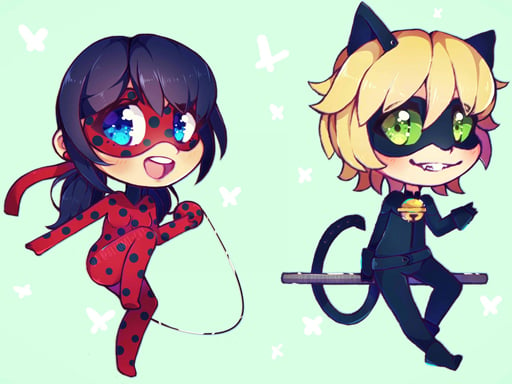
Funny observation Some pages start as “just a quick color”… and suddenly you’re zoomed in, carefully shading a tiny cape like you’re painting a superhero poster. What you do in the game Chibi Sup Color Game is a cute coloring studio. It often gives you two ways to play: Number mode: tap a color and fill the matching numbered cells Free-paint mode: choose brushes, mix colors, and paint however you like You can also add stickers or frames in some versions, and save your finished art to a gallery. Core loop: Pick a page. Choose number-fill or free-paint. Color the main areas first. Add small details and highlights. Save and start a new page. Real player moment: you finish the whole picture… then notice one tiny uncolored square hiding in a corner. Zoom saves lives. Controls Desktop Mouse click to select colors and fill areas Drag for brush painting (free mode) Zoom buttons or scroll wheel (if available) Mobile Tap to select swatches and fill cells Finger drag for brush painting Pinch/zoom on supported devices How you “win” / progress No timers. Progress is: completing more pages unlocking new themed packs (if your version has them) improving your coloring style (clean edges, smooth shading) Tips for better coloring (11 tips) Start with a light base color, then add darker shading later. Pick one light direction (like top-left) and shade consistently. Zoom in for corners so you don’t miss tiny cells. Use a small brush for edges, bigger brush for fills (free mode). Feather highlights with a low-opacity eraser if your tools allow it. Don’t over-sticker. Stickers are best as accents, not covers. Mirror a color in 3 places (hat trim, shoe stripe, background dot) to tie it together. For shiny items: add one tiny bright dot + a soft glow around it. If skin tones look weird, soften shadows. Use a gentle darker tone, not black. Lock finished sections if your version has a lock tool. Coach voice: Slow strokes. Clean edges. Tiny helpful line: If your page looks “flat,” add one darker strip under hair, collars, or capes. That single shadow makes characters pop. Common problems & quick fixes Fill doesn’t work: click/tap inside the game window. Lag when zoomed: close extra tabs and lower effects if settings exist. Hard to tap tiny cells: zoom in more and keep zoom at 100% browser scale. parent note: Great for calm creativity and fine motor control. Suggest a break after one full page to rest eyes and hands. 5) Quick Info: Platform: Browser (HTML5) Genre: Coloring / art Age fit: 5–13 Session length: 10–25 minutes Controls: Tap/click to fill; drag to paint; zoom tools 6) FAQ: Q1: What’s the difference between number mode and free paint? Number mode is guided filling. Free paint lets you color anything. Q2: How do I get clean edges? Zoom in and use a small brush near outlines. Q3: My colors look messy—why? Too many strong colors. Choose a main color + one accent. Q4: Can I shade? Yes—use a darker tone on one side and a lighter highlight on the other. Q5: Why won’t a cell fill? You may be on the wrong number or the game isn’t focused. Tap inside the play area. Q6: Can I save my art? If the game has a save/gallery button, yes—saving depends on the site/device.
Similar Games
-
Baby Taylor Cooking Camp
-
Spooky Tripeaks
-
Advanced pixel apocalypse 3 2022
-
Car Parking Pro - Park
-
Dual Balls
-
Bubble Shooter Pet Match 3
-
Funny Cotton Candy Shop
-
Lily Dress Up
-
Rabbit Dress Up
-
PAPER FOLD ORIGAMI ONLINE
-
Fill the Gap
-
Minicraft Duello
-
Gothic New Era
-
Car Stunt Race 2022
-
Fairy Princess Dressup
-
Puzzle Draw
-
Derby Arena Demolition 2022